 OfflineStatement
PDF bank statement to QBO
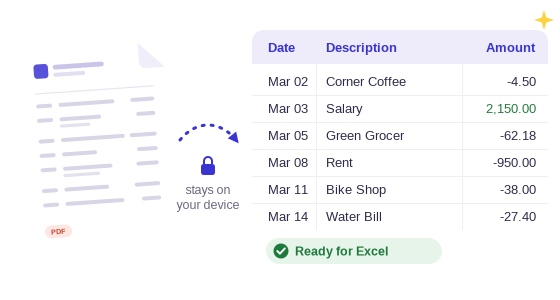
QuickBooks Desktop only imports bank files in its own Web Connect format (.qbo), and your bank gave you a PDF. Drop the statement here and download a .qbo file with dates, amounts, payees and the closing balance. Quicken users get the same thing as .qfx. The PDF is read on your device and never uploaded.
 Drop statement PDFs hereor click to choose filesTap to choose a statement PDF
Free: 3 statements a day, no sign-up.
Bank not supported yet? Email the bank name and country to [email protected] and we'll add it. No need to send your statement.
How your statement stays private
- Your PDFPick a statement from your computer or phone.
- Read in this tabThis page reads it on your device and never sends the file anywhere. Turn off your wifi after the page loads and it still works.
- Your spreadsheetThe rows go straight into a file in your downloads.
Works with most banks
Reads text-based PDF statements with debit/credit or single-amount columns, in US, UK, European, Indian and Indonesian number formats. Password-protected e-statements work too, and the password stays on your device.
Checked, not guessed
Every statement gets a running-balance check: if a row doesn't add up to the printed balance, we highlight it, so nothing goes into your books wrong.
Hours of typing, done in a minute
Free: preview every transaction and download the first 25 as a CSV.
Pro: every transaction, a year of statements in one file, Excel, QuickBooks, Xero and OFX. See pricing
Import it into QuickBooks Desktop
- Drop your statement PDF in the box above. Check the preview: the running-balance check tells you whether every row was read right.
- Choose QuickBooks .qbo (a Pro format). The file lands in your downloads.
- In QuickBooks Desktop, go to File > Utilities > Import > Web Connect Files and pick the .qbo file.
- When QuickBooks asks which account the transactions belong to, pick your existing bank or card account (or create one), then match the new transactions in the Bank Feeds center.
QuickBooks Online and Quicken
QuickBooks Online takes the same .qbo file: Bank transactions > Link account ▾ > Upload from file. For Quicken, choose Quicken .qfx and use File > File Import > Web Connect (.QFX) File.
What's inside the file
A .qbo file is an OFX bank file plus Intuit's bank id field, which QuickBooks checks before it imports anything. Each transaction carries its date, its signed amount (money out is negative), the payee (QuickBooks shows the first 32 characters) and the full description as a memo. Opening-balance lines are left out, and when the statement prints a running balance, the last one goes in as the statement balance. Each transaction gets a fixed id, so importing the same statement twice doesn't create duplicates.
Several months at once? Drop all the PDFs together: Pro merges them into one .qbo file and drops transactions that appear in two overlapping statements.
FAQ
Why won't QuickBooks Desktop import my OFX or CSV file?
QuickBooks Desktop only imports bank files in Web Connect format (.qbo), which carry Intuit's bank id. Choose QuickBooks .qbo here instead of the OFX file.
It says it can't verify the financial institution. What now?
That message means the file has no bank id QuickBooks recognizes. Plain OFX files usually don't have one; the .qbo file from this page includes it. When asked, choose the account to import into.
Does it work for credit card statements?
Yes. Charges come out as negative amounts and payments as positive ones. Import into your credit card account in QuickBooks.
Is my statement uploaded?
No. The PDF is read by code running in your browser and the .qbo file is made there too.