 OfflineStatement
Halifax statement PDF to CSV
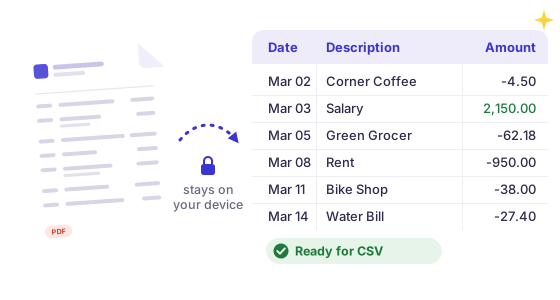
Drop a Halifax statement PDF and get a CSV of dates, descriptions, money in, money out and balances. The PDF is read in your browser and stays on your device.
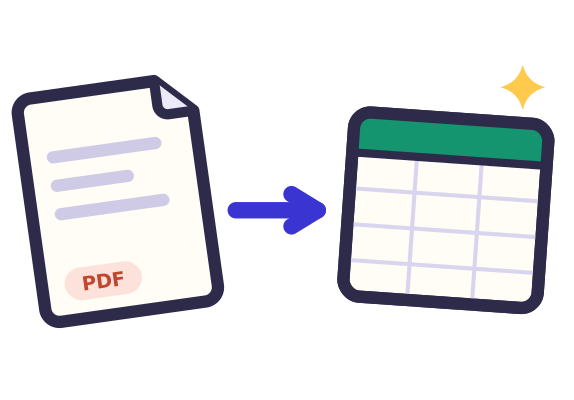 Drop statement PDFs hereor click to choose filesTap to choose a statement PDF
Free: 3 statements a day, no sign-up.
Bank not supported yet? Email the bank name and country to [email protected] and we'll add it. No need to send your statement.
How your statement stays private
- Your PDFPick a statement from your computer or phone.
- Read in this tabThis page reads it on your device and never sends the file anywhere. Turn off your wifi after the page loads and it still works.
- Your spreadsheetThe rows go straight into a file in your downloads.
Works with most banks
Reads text-based PDF statements with debit/credit or single-amount columns, in US, UK, European, Indian and Indonesian number formats. Password-protected e-statements work too, and the password stays on your device.
Checked, not guessed
Every statement gets a running-balance check: if a row doesn't add up to the printed balance, we highlight it, so nothing goes into your books wrong.
Hours of typing, done in a minute
Free: preview every transaction and download the first 25 as a CSV.
Pro: every transaction, a year of statements in one file, Excel, QuickBooks, Xero and OFX. See pricing
How to download Halifax transactions as a CSV
- Log on to Halifax Online Banking in a computer browser. The Halifax app offers PDF statements, not a CSV export.
- Open the account so you see its list of transactions.
- Look above the transactions for Statement options and choose the option to export transactions; on some accounts it sits at the bottom of a transaction search instead.
- Pick the dates and CSV as the format (QIF is offered too) and download the file. Menu names change from time to time.
Each export covers a limited date range, so a full tax year means several files joined by hand. For a year in one file, or a statement you already saved for a mortgage or rental application, convert the PDF on this page.
How to download your Halifax statement as a PDF
- Log on to the Halifax app and choose the account. (In Online Banking on a computer, open the account and select Statement options.)
- Tap the download icon above your most recent transactions. Halifax says the app holds at least 10 years of statements.
- Choose the month and year, then save, print or share the PDF from your device. Menu names change from time to time.
Then drop the PDF in the box above, or click it to choose the file.
What you get
Halifax current account statements usually list Date, Description, Type, Money In (£), Money Out (£) and Balance (£). The converter finds those columns by their headings, so Money In becomes Credit and Money Out becomes Debit whichever order they are printed in, and it ignores the (£) after each heading. Short payment type codes such as DD, DEB or FPI stay in the description. £ amounts with comma thousands and dates such as 12 Sep 26 are read as printed; the Pro QuickBooks, Xero and OFX exports turn them into full day-first dates.
If Halifax's own export covers the dates you need, use it. The converter is for the PDF statements: older months, a whole tax year in one file, or statements someone sent you.
How it works, and what it can't do
OfflineStatement is a general reader for text-based PDF statements: it finds the transaction table by its column headings and turns each dated row into a spreadsheet row. It was not built with or tested by Halifax, and statement layouts change, so check the result against the PDF. Where the statement prints a running balance, every row is checked against it and rows that don't add up are highlighted. Scanned or photographed statements (images, not text) are not supported. Password-protected PDFs work: you type the password and it stays on your device.
Open the CSV in Excel, Google Sheets or QuickBooks
Excel: double-click the CSV, or use Data > From Text/CSV. Google Sheets: File > Import > Upload, then choose the CSV. QuickBooks Online: the bank-upload CSV needs Date, Description and Amount; Pro exports exactly that format (see PDF to QuickBooks), or you can trim the free CSV to those columns.
Other bank guides: Chase · Bank of America · Wells Fargo · Capital One · American Express · Citi · U.S. Bank · PNC · TD Bank · Discover · Apple Card · Truist · Navy Federal · HSBC UK · Barclays · Lloyds · NatWest · Santander UK · Monzo · Nationwide · Starling · TSB · first direct · RBC Royal Bank · TD Canada Trust · Scotiabank · CommBank · Westpac · ANZ · NAB · BMO · CIBC · SBI · HDFC Bank · ICICI Bank · Axis Bank · Kotak · PNB · Bank of Baroda · Canara Bank · Union Bank of India · IDFC FIRST Bank · Yes Bank · Indian Bank · IDBI Bank · UCO Bank · Bank of Maharashtra · South Indian Bank · Bandhan Bank · IndusInd Bank · Federal Bank · Bank of India · Central Bank of India · FNB · Capitec · Absa · Standard Bank · Bank of Ireland · AIB · Maybank · DBS / POSB · OCBC · UOB · Any bank
Halifax and the other bank names on this site are trademarks of their respective owners. OfflineStatement is an independent tool by Tofu Labs and is not affiliated with, endorsed by or sponsored by any bank.
FAQ
Is this a Halifax tool?
No. OfflineStatement is independent and not affiliated with or endorsed by Halifax, Bank of Scotland plc or Lloyds Banking Group.
Does it work for Bank of Scotland statements too?
Bank of Scotland statements look much like Halifax and Lloyds ones, with Money In, Money Out and Balance headings, so they usually convert. Check the result against the PDF.
How do I download Halifax statements in CSV format?
In Online Banking on a computer, open the account and use the export option under Statement options (or at the bottom of a transaction search), then pick the dates and CSV. For a year in one file, or the statements themselves, convert the PDF here.
Is my statement uploaded?
No. The PDF is read by code running in your browser. There is no server that receives your file, and you can disconnect from the internet after the page loads. Pro checks your license about once a day when you're online and keeps working offline in between.
Is it free?
Previewing a statement and downloading a CSV of its first 25 transactions is free. Pro gives you every transaction, batches of statements, Excel .xlsx and QuickBooks, Xero and OFX files.